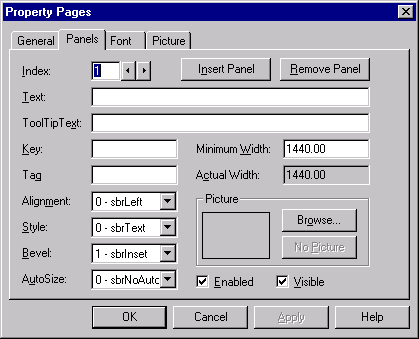
Private Sub Slider1_Change()
StatusBar1.Panels(1).Text = Slider1.Value
End Sub
Private Sub Slider1_Scroll()
StatusBar1.Panels(2).Text = Slider1.Value
End Sub
Other ActiveX Controls
MS Common controls
Books Online See :
ComponentsToolsGuide/Using ActiveX controls/Using the ActiveX controls
Use COMCTL32.OCX for the following Controls
Progress BarThis Control is used to show the % status.
On Form Load
{
ProgressBar1.Visible = false
ProgressBar1.Value = 0
}
When u want to show the status
{
Dim I as integer
Dim J as Long
ProgressBar1.Enabled = True
For I = 1 to 100
ProgressBar1.Value = i
For j = 1 to 10000 ‘Delay Loop
Next j
Next I
ProgressBar1.Enabled = False
ProgressBar1.Value = 0
}
Nearly same as the progress bar.
This event is triggered when the slider bar is moved
Private Sub Slider1_Scroll()
StatusBar1.SimpleText = Slider1.Value
End Sub
This event is triggered when the move of the slider bar is complete
Private Sub Slider1_Change()
StatusBar1.SimpleText = Slider1.Value
End Sub
Private Sub Slider1_Change()
StatusBar1.Panels(1).Text = Slider1.Value
End Sub
Private Sub Slider1_Scroll()
StatusBar1.Panels(2).Text = Slider1.Value
End Sub

Now u can add buttons to the toolbar. These buttons can have a picture too using the image property of the button. In the code, u have to find out which button is clicked
Private Sub Toolbar1_ButtonClick(ByVal Button As ComctlLib.Button)
If Button.Index = 1 Then
MsgBox "Button 1 clicked"
ElseIf Button.Index = 2 Then
MsgBox "Button 2 Clicked"
ElseIf Button.Index = 3 Then
MsgBox "Button 3 Clicked"
End If
End Sub
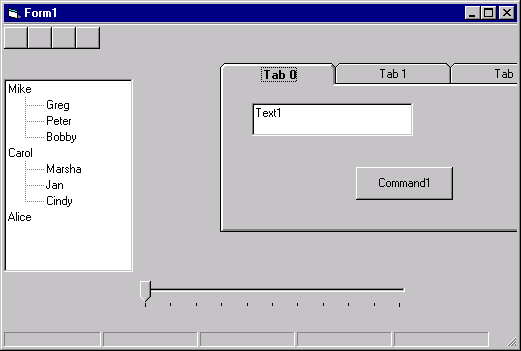
The tabstrip that comes with the Common controls is not a container for the items. In this tabstrip u have to group the controls in different frames and then use the hide/show techniques to display the groups. Use the SSTab control to have tab pages having controls inside the Tab containers. However in the SSTab type of control u cannot have common elements, like the OK button which is common to different tabs. This SSTab is a different component in the component list.
Private Sub Form_Load()
Dim nodX As Node
Set nodX = TreeView1.Nodes.Add(, , "dad", "Mike") ' A first sibling.
Set nodX = TreeView1.Nodes.Add(, , "mom", "Carol")
Set nodX = TreeView1.Nodes.Add(, , , "Alice")
' Marsha is the FirstSibling.
Set nodX = TreeView1.Nodes.Add("mom", tvwChild, , "Marsha")
Set nodX = TreeView1.Nodes.Add("mom", tvwChild, , "Jan")
Set nodX = TreeView1.Nodes.Add("mom", tvwChild, , "Cindy")
nodX.EnsureVisible ' Show all nodes.
' Greg is the FirstSibling.
Set nodX = TreeView1.Nodes.Add("dad", tvwChild, , "Greg")
Set nodX = TreeView1.Nodes.Add("dad", tvwChild, , "Peter")
Set nodX = TreeView1.Nodes.Add("dad", tvwChild, , "Bobby")
nodX.EnsureVisible ' Show all nodes.
End Sub
Private Sub tvTreeView_DblClick()
Dim objNode As Node
Set objNode = tvTreeView.SelectedItem
If objNode Is Nothing Then
Exit Sub
End If
If objNode.Parent Is Nothing Then
MsgBox "u doubleclicked the parent"
Exit Sub
End If
If objNode.Image = 1 Then 'else it is the child node
objNode.Image = 4
Else
objNode.Image = 1
End If
End Sub
This is not a standalone control. U can put this control on the screen then add images in the properties page of this control and use the Imagelist control in other objects like toolbar,Treeview etc.
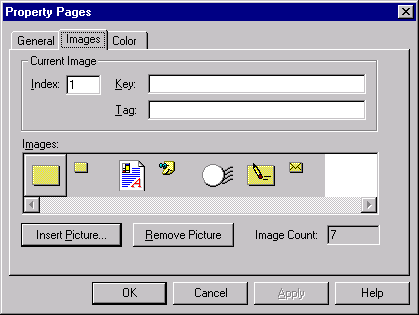
This is the property page of the Toolbar Object


One column header is added thru code and the other 3 thru the Properties Tab of the Listview Control, Set the view type to Report View if u want to see the col headers
See the Books Online for details.
Dim ColX As ColumnHeader
Dim ViewX As ListItem
Set ColX = ListView1.ColumnHeaders.Add(1, , "Amit")
Set ViewX = ListView1.ListItems.Add(, , "This is the ListItem Control")
ViewX.SubItems(1) = "Column1 Item"
ViewX.SubItems(2) = "Column2 Item"
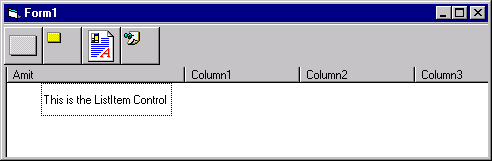
Sample
Dim itmx as listitem
lvwdb.ListItems.Clear
AddListHeaders
Do While Not rsDetails.EOF
Set itmx = lvwdb.ListItems.Add(, , CStr(rsDetails!Mark))
itmx.SubItems(1) = rsDetails!From
itmx.SubItems(2) = rsDetails!AllocatedTo
itmx.SubItems(3) = rsDetails!Date
itmx.SubItems(4) = rsDetails!Subject
itmx.SubItems(5) = rsDetails!Priority
'mItem.SubItems(3) = rsDetails!Date
rsDetails.MoveNext
Loop
Private Function AddListHeaders()
Private clmX As ColumnHeader
Set clmX = lvwdb.ColumnHeaders.Add(, , "Status")
Set clmX = lvwdb.ColumnHeaders.Add(, , "From")
Set clmX = lvwdb.ColumnHeaders.Add(, , "Allocated To")
Set clmX = lvwdb.ColumnHeaders.Add(, , "Date")
Set clmX = lvwdb.ColumnHeaders.Add(, , "Subject")
Set clmX = lvwdb.ColumnHeaders.Add(, , "Priority")
'Set clmX = LvLoginInfo.ColumnHeaders.Add(, , "Comment")
End Function
Basic Operation
To use the UpDown control, you must first set the BuddyControl property to another control, and the BuddyProperty to a scrollable property on the other control. The Min and Max properties determine the limits of the control, and the Wrap property determines if the value will wrap when the end user scrolls past the Min or Max values. The Increment property specifies the amount by which the Value property will be changed when either the up or down arrow is clicked. UNCHECK THE PROMPT INCLUDE PROPERTY otherwise the promt character say _ will be included in the output string. Check for the text property to get the output.
Use the AutoBuddy Property to Set a Buddy Control Automatically
At design time, setting the AutoBuddy property to True causes the UpDown control to automatically "buddy" with the previous control in the Zorder.
1
Draw the buddy control on the form.2
Draw the UpDown control on the form.3
Right-click the UpDown control and click Properties to display the Property Pages Dialog box.4
Click Buddy to display the Buddy tab, as seen in Figure 2.43 below.5
Click the AutoBuddy check box to set the AutoBuddy property to True.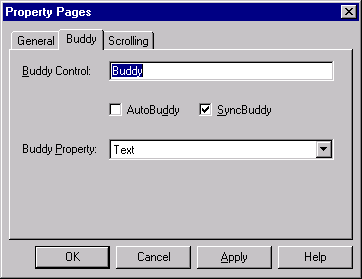 6 Click the SyncBuddy check box to
set the SyncBuddy property to True.
6 Click the SyncBuddy check box to
set the SyncBuddy property to True.

Private Sub Command1_Click()
MsgBox "Path = " & File1.Path & File1.filename
End Sub
Private Sub Dir1_Change()
File1.Path = Dir1.Path
End Sub
Private Sub Drive1_Change()
On Error GoTo Err
Dir1.Path = Drive1.Drive
On Error GoTo Err1
File1.Path = Dir1.Path
Exit Sub
Err:
MsgBox "Wrong Drive name"
Resume Next
Exit Sub
Err1:
MsgBox "Wrong file"
Resume Next
End Sub
Drop the control on the screen and then u can use different common dialogs like, file-save, file-open etc using the different show commands
| Method | Dialog displayed |
| ShowOpen | Open |
| ShowSave | Save As |
| ShowColor | Color |
| ShowPrinter | |
| ShowHelp | Invokes Windows Help |
Private Sub Command1_Click()
CommonDialog1.Filter = "All Files (*.*)|*.*|Text (*.txt)|*.txt|Pictures (*.bmp;*.ico)|*.bmp;*.ico"
CommonDialog1.ShowOpen
End Sub
For showing charts
Private Sub Command1_Click()
Dim Row, Column As Integer
Dim i, j As Integer
'Set the data.
For i = 1 To 3
For j = 1 To 3
X(i, j) = i * j
Next
Next
'Set the row labels.
X(1, 2) = "Wheat"
X(1, 3) = "Corn"
'Set the column labels.
X(2, 1) = "January"
X(3, 1) = "February"
'Set the chart data.
MSChart1 = X
 End
sub
End
sub
The format property is there to display the date
Mask character Description
# Digit placeholder. .
, Thousands separator. The actual character used is the one specified as the thousands separator in your international settings. This character is treated as a literal for masking purposes.
: Time separator. The actual character used is the one specified as the time separator in your international settings. This character is treated as a literal for masking purposes.
/ Date separator. The actual character used is the one specified as the date separator in your international settings. This character is treated as a literal for masking purposes.
\ Treat the next character in the mask string as a literal. This allows you to include the '#', '&', 'A', and '?' characters in the mask. This character is treated as a literal for masking purposes.
& Character placeholder. Valid values for this placeholder are ANSI characters in the following ranges: 32-126 and 128-255.
> Convert all the characters that follow to uppercase.
< Convert all the characters that follow to lowercase.
A Alphanumeric character placeholder (entry required). For example: a z, A Z, or 0 9.
a Alphanumeric character placeholder (entry optional).
9 Digit placeholder (entry optional). For example: 0 9.
C Character or space placeholder (entry optional).
? Letter placeholder. For example: a z or A Z.
http://www.tidestone.com/
To specify the number of rows,columns and putting some data in the cells
Private Sub Command2_Click()
Dim Row, col As Integer
MSFlexGrid1.Cols = 5
MSFlexGrid1.Rows = 5
For col = 1 To 4
For Row = 1 To 4
MSFlexGrid1.col = col /* Set current Row column*/
MSFlexGrid1.Row = Row
MSFlexGrid1.Text = "Amit(" & Str(Row) & "," & Str(col) & ")"
Next Row
Next col
End Sub
To find out which row and column is the current column
Private Sub MSFlexGrid1_DblClick()
MsgBox "Selected (" & Str(MSFlexGrid1.Row) & "," & Str(MSFlexGrid1.col) & ")"
End Sub
Code for using the Edit functionality in a FlexiGrid like the Excel Grid

For ODBC controls
Data1.Recordsource = <stored procedure name> OR a query
Data1.RecordSource = "sp_selectfromsch"
OR
Data1.RecordSource = "Select * from SCH"
Parameters can also be passed to the stored procedures while calling, Do not give any call or execute statements to call the stored procedures. Give it as,
Str1 = "Sp_selectfromsch ‘N1’"
Data1.Recordsource = Str1
Text1.DataField = "SCH_ID"
Set rsTmp = qdfTmp.OpenRecordset()
Set f.Data1.Recordset = rsTmp
Data1.Connect = "ODBC;DATABASE=FIDAC;UID=sa;PWD=;DSN=FIDAC"
Data1.RecordSource = "Select SCH_ID,SCH_PERIOD,SCH_IRT from SCH"
Data1.RecordsetType = 2 'snapshot
Data1.Options = 0
Data1.Refresh
To add a control to a CoolBar
The child control will then move and resize along with the Band object at run time.
Note If you simply add a control without associating it to a band, it will appear as a floating control over the CoolBar at run time. To avoid this situation, set the Visible property of the control to False.
You can have additional controls contained on a CoolBar and swap them in and out at run time using the Child property of the Band object.
Private Sub CoolBar1_HeightChanged(ByVal NewHeight As Single)
F1Book2.Top = CoolBar1.Top + NewHeight
End Sub
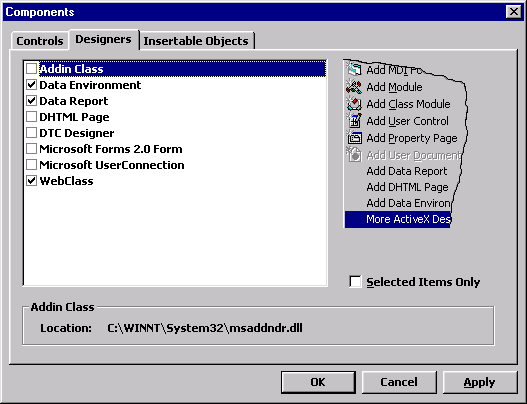 Add
the designer and the Data Report from the Components->Designer Tab.. Now your project
menu will change and Report Designer and Data Environment will appear
Add
the designer and the Data Report from the Components->Designer Tab.. Now your project
menu will change and Report Designer and Data Environment will appear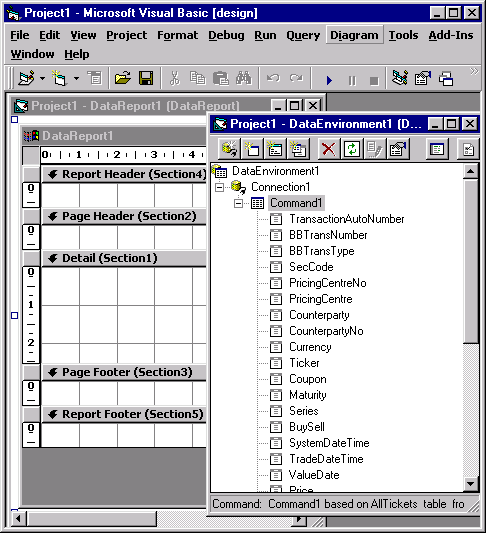 Now
add a command to a Connecion .. Select the Database Objects and the Object name
Now
add a command to a Connecion .. Select the Database Objects and the Object name You can
display the report using Datareport1.show.
You can
display the report using Datareport1.show.DataEnvironment1.rsTokyoDetails_Grouping.Filter = "Currency = 'USD'"
d