HOW TO CUT AND PASTE TEXT
When you are new to computers and/or "Windows" even the most basic and routine procedures seem incredibly complicated. With time, this complexity recedes in the consciousness and formerly "difficult" tasks become "routine." For that to occur, the step-by-step process must be repeated so often that the repetition itself trains the mind and hand. The more efficient the action, the faster will be the self-training that occurs. Moving a section of text from one place, one document or even one program to another is a task so often performed in Windows that it is worth learning both correctly and well.
Moving text around from place to place is fairly straightforward:
1. Mark a block of text from your source with keyboard
or mouse.
2. Cut or Copy the block with keyboard or mouse
3. Go to the destination where you want to place the text
place the cursor where you want to add the "cut" or
"copied" text
4. Paste the source text into the destination with keyboard
or mouse.
Confused already? Then, here's an explanation of some of the terminology from above that may be new to you:
"Mark a block"

A "block" of text is simply some amount of text, from one letter to several pages in length, that has been "highlighted" (usually in "reverse" colors, e.g. white-on-black instead of black-on-white) as the portion of a document on which some operation is to be performed. You can mark a block of text with either the keyboard or the mouse.
To mark a block of text with the keyboard:
1) With the cursor keys, move your cursor to the STARTING
point of the portion of text you want to mark.
2) Hold down the key and move the cursor to the end
of the text you want to mark:
with the arrow keys to move one character at a time
with the or keys to mark to the end or
beginning of the current line of text
with the or key to mark to the
end or beginning of the page of text
To mark a block of text with the mouse:
1) Place the mouse cursor at the beginning or end of the text
you wish to mark:
2) Click and HOLD DOWN the *LEFT* mouse button and move the
mouse pointer to the end of the text you wish to mark, then
LET UP the *LEFT* mouse button. (see fig. above)
If the far end of the text you wish to mark is above,
below or otherwise beyond the current viewing screen,
most programs will allow you to simply move the mouse
pointer just outside of the window frame and the window
will automatically "scroll" in that direction.
Once you LET UP on the *LEFT* mouse button, the block is marked.
Clicking again anywhere in the window will "unmark" the block just
marked, so be careful.
"Cut" / "Copy"
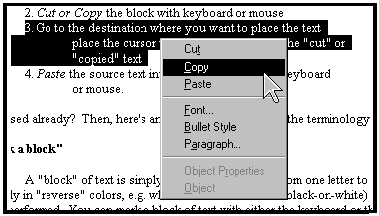
To "cut" a block of text is to remove it from the source document altogether either to get rid of it, replace it with something else or to move it to a different location. You can move text within the same document, into another document or even to a completely different program. To "copy" a block of text is similar to "cutting" it, except that the original block of text stays in place and a "copy" of it is added somewhere else. To "cut" or "copy" a marked block of text: (see fig. below)
 Keyboard:
1) To cut: Hold down the "control" key and press "X"
[CTRL-X]
2) To copy: Hold down the "control" key and press "C"
[CTRL-C]
Mouse:
1) Click the *RIGHT* mouse button once and choose either
"cut" or "copy"
"Paste"
"Paste" is the operation that puts the text that was "cut" or "copied" earlier into the new location.
To "paste" text: (see fig. below)
 Keyboard:
1) Place the cursor at the point where you want to add the
text, hold down the "control" key and press "V"
[CTRL-V]
Mouse:
1) Place the cursor at the point where you want to add the
text, press the *RIGHT* mouse button and choose "paste"
That's really all there is to it - much longer to explain than to do. Cut/Paste or Copy/Paste is one of the most common functions used in Windows so it's worth learning properly. Remember also, practice makes perfect.
A couple of additional things to keep in mind:
When you "cut" or "copy" something in Windows, it goes to the "clipboard." Clipboard is a Windows possession and you have little control over it, but you should keep in mind the following:
1) Whatever is put in the clipboard stays there until something
new is added or until Windows is closed down. That means if you
"cut" or "copy" a piece of text just one time, you can "paste" it
as many times as you want, until you replace it with a new "cut"
or "copy" block.
2) Each "cut" or "copy" completely replaces what is in the clip-
board. You cannot "accumulate" pieces of text to "paste" somewhere
else all at once. If you have several pieces of text to "move" or
"copy," you'll have to do them one at a time. :-(
3) Be careful about always "cutting" text from your source. If for
some reason you should lose the "cut" text from the clipboard it's
gone forever... you won't be able to get it back. For critical
things it's best to "copy" first, then go back and delete the text
from the source. Caution is good!
Now that you're an expert in "cut" and "paste," why not try some of the scripts that are available on #50+retired? Most of them require simply "copying" a long line, or a few lines, of text from a downloaded file and "pasting" that text into the "alias" window in mIRC. Check the ^scripts file on #50+retired for more info. Good luck and have fun...
See you on #50+retired
Smitty (AC5C_Okla/Smitty_)
Arch (_Bubba/wa5nfp)
| Home Page | General Info | The OPs | How To Info | F.A.Q. | Scripts | Channel Users |
 This page is maintained by Smitty,
(ac5c@oklahoma.net) and was designed
by _Bubba
(ahbaker@theologie.uni-erlangen.de).
Both can be found and/or contacted on DALNet's #50+retired channel, or
through DALNet MemoServ. Absolutely nothing here is
copyrighted by us, and it probably wouldn't matter even if it were.
Take whatever you want, and if it will make you feel any better to take
credit also for our original work we invite you to go ahead... we can always
make more. If you have praise or contributions for the page, please email us
right away. For all other matters please
click here.
This page is maintained by Smitty,
(ac5c@oklahoma.net) and was designed
by _Bubba
(ahbaker@theologie.uni-erlangen.de).
Both can be found and/or contacted on DALNet's #50+retired channel, or
through DALNet MemoServ. Absolutely nothing here is
copyrighted by us, and it probably wouldn't matter even if it were.
Take whatever you want, and if it will make you feel any better to take
credit also for our original work we invite you to go ahead... we can always
make more. If you have praise or contributions for the page, please email us
right away. For all other matters please
click here.