
Have you ever logged onto a DALNet server only to find that someone else is already using your nickname? Or worse... maybe you've logged on only to find yourself WARNED!! that if you don't change your nickname in 30 seconds you will be kicked off the network until you do! If so, then this page is for you... read on: This "How To" page offers instruction on how to deal with NickServ and to instruct it to remember your nickname, and allow only you to use that nickname if you so choose. Of course, you cannot register a nickname that someone else has already chosen and registered, but once you settle on one or more unregistered nicknames and register them, no one else will have access unless you specifically allow it, or the name(s) expires.
How to register a nickname on DALNet
First it is important to realize that there are three "robots" that are always active on DALNet:
MemoServ - provides messages to other registered users (with registered nicks)
ChanServ - provides channel control and protection for OPs
NickServ - provides nickname registration and protection for regular users
We will be dealing with "NickServ," a robot that tends nickname registrations and prevents unauthorized users from accessing or using a nickname you have registered. To register a nickname, you must introduce yourself to NickServ and instruct it to register your nick and password.
There are two ways to access the permanent "bot" called "NickServ":
The Hard Way: (/msg nickserv )
Which is necessary for each line of command or inquiry
-or-
The Easy Way: (/query nickserv)
Which opens a separate window dedicated to talking with the "bot"
and only requires you to enter a command (without /msg nickserv)
Registering a nickname is literally as easy as 1 - 2 - 3
1 - choose a nickname (/nick <nickname>)
2 - register a password for that nick with NickServ
(/msg nickserv register <password>)
3 - set the "KILL" switch if desired (/msg nickserv set kill on)
Note: When you register a nickname on DALNet, you are actually registering a password for the nickname you currently are using. Below you will find a more detailed explanation of these three steps, and the possible variations that may arise.
Step 1: (the easy way)
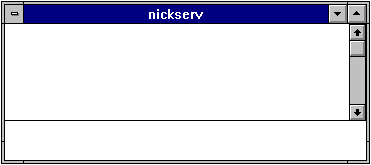
While logged onto a DALNet server, type /query nickserv <enter> which will open a separate window talking only to the nickserv "robot." (see figure below) Now you only have to type the command or inquiry and not the name of nickserv each time.
Step 2:
Pick the nickname you intend to register and change to that nickname using the command, /nick <nickname> <enter>
Note: If the nick you choose is already registered,
you will receive a message similar to this one:

All is not lost at this point, however! because NickServ is a typical, stupid computer device, incapable of discrimination, and NickServ thinks that "Bubba" and "_Bubba" must surely come from two completely different families, places and cultures, and are therefore nothing alike... completely different.
This means that if someone else has already registered the nick you want, you can try some tricks to get past the problem: For example, try putting one or more "neutral" characters on either side of the nick and then change to that nick by typing:
"/nick <altered-nick>" (no quotes, of course)
to see if you still get warned. Bubba, _Bubba, _Bubba_, ^Bubba, Bubba^, -Bubba, Bubba-, -Bubba-, =Bubba=, etc. all look completely different to NickServ (silly computer!), so just keep changing nicks until you get nothing as a warning from NickServ.
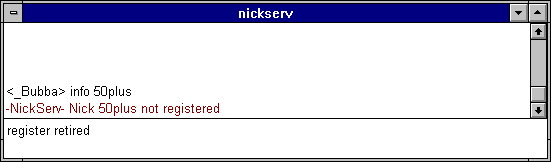
However, the lack of a warning message from NickServ does not necessarily mean that the nick you are using is not registered! (As we shall see a little later). Once NickServ doesn't warn you, then type
"info <currentnick> <enter>"
and check the response. When the NickServ response looks something like this:

it is telling you that the nick you have inquired about is not registered. You are ready to proceed!
Step 3.
Now type: "register <password> <enter>"
Note: This may look odd to you when you type it, as if you're registering a wrong nick. For example, if your nick is CutiePie and the password you've chosen is "ugly+1", you would type "register ugly+1 <enter>". For some people this seems to be registering the nick ugly+1. Don't worry though, NickServ only knows your current nickname, and will only let you register that one, therefore it takes the word immediately following the "register" command to be your password. (NickServ will not, however, let you use your current nickname also as a password... it's way too easy for someone to guess.) For example: to register the nick ^50plus with the password retired would look like this:
It looks like I'm trying to register the nick "retired," doesn't it? Actually, though, since I was already using the nickname ^50plus (I changed from _Bubba... the window just doesn"t show it yet), NickServ took the first word after the command "register" as the password for my current (unregistered) nick, ^50plus.
When you have this done for your own nickname, and have correctly entered the command and a valid password, you should see a message similar to this one:

which tells you that you have successfully registered your nick! Congratulations!! But it's not quite over yet.
First, it is important to remember your password because no one at DALNet can help you if you forget it and lose access to your nick. There are two reasons you must remember your nickname:
1) To make changes to your own access, password, switches. etc.
2) To identify yourself to NickServ if it doesn't recognize you for some reason
If NickServ ever challenges you as the registered owner of your nick (and sometimes it does... it's just a stupid computer robot remember) then within 60 seconds, in the current window, you must type:
/msg nickserv identify <password>
or in the special query window (/query nickserv) you would type:
identify <password>
Now... remember that a little while ago we mentioned that just because NickServ doesn't warn you doesn't mean that the nick you're using isn't registered? Here's why:
Anyone may continue use your registered nickname, though they will be warned, unless you as the "owner" of the name have set the "KILL" option on. If "KILL" is on, then NickServ will warn the user of your nick that he/she has 60 seconds to change the nick. If they do not change, then NickServ will "kick" them from the server, and not allow them to stay on until they change to another nick.
To set this "KILL" function on, make sure you are using your registered nick, and that you have "identified" yourself to NickServ, then type:
"set kill on <enter>"
NickServ will then confirm the setting like this:
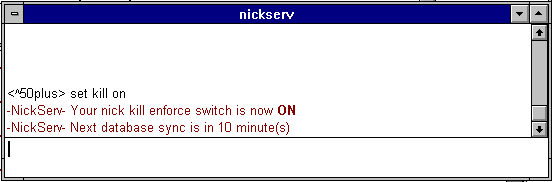
From that point on, no one else can use your nick unless you authorize their access (see NickServ help - below) or they use the proper password.
Note: Registered nicks expire after 2 weeks of inactivity. NickServ resets its timer each time you log on with that nick, so there is nothing for you to do to keep a registered nick except use it.
To learn something about other commands and functions available in NickServ, type "help" in the special query window (/query nickserv) or in the current window type:
/msg nickserv help
Have fun with your registered nick. We'll see you on #50+retired.
Smitty (ac5c_okla)
_Bubba (wa5nfp)
| Home Page | General Info | The OPs | How To Info | F.A.Q. | Scripts | Users |
 This page is maintained by Smitty,
(ac5c@oklahoma.net) and was designed
by _Bubba
(ahbaker@theologie.uni-erlangen.de).
Both can be found and/or contacted on DALNet's #50+retired channel, or
through DALNet MemoServ. Absolutely nothing here is
copyrighted by us, and it probably wouldn't matter even if it were.
Take whatever you want, and if it will make you feel any better to take
credit also for our original work we invite you to go ahead... we can always
make more. If you have praise or contributions for the page, please email us
right away. For all other matters please
click here.
This page is maintained by Smitty,
(ac5c@oklahoma.net) and was designed
by _Bubba
(ahbaker@theologie.uni-erlangen.de).
Both can be found and/or contacted on DALNet's #50+retired channel, or
through DALNet MemoServ. Absolutely nothing here is
copyrighted by us, and it probably wouldn't matter even if it were.
Take whatever you want, and if it will make you feel any better to take
credit also for our original work we invite you to go ahead... we can always
make more. If you have praise or contributions for the page, please email us
right away. For all other matters please
click here.