Audio Catalyst is a very simple program to use, just follow my basic instructions to each function and start picking out some CD's. Once you have loaded an audio CD into your CD-ROM player you will see a screenshot similar to that in the image below. You can also double click on the Track #'s to play or rename tracks.
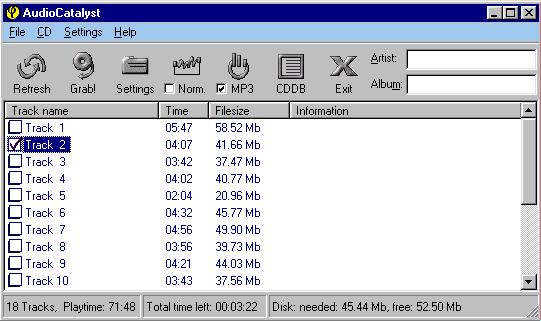
Refresh
Refreshes the tracklist whenever a new audio CD is inserted.
Grab
Check the boxes of the songs you want to convert, click grab and the software will then begin to make an exact digital reproduction of each track. After that, you can sit back and wait for your new mp3's.
Settings
Alter the directory path to save wave files and determine rip speed/method. The default settings should be set to start recording immediately.
Norm
When recording songs from different CD's, you may notice that some are recorded at different volumes than others.
To set the same sound level for all CD's, use the normalize function. This makes it possible
to record each track at the same sound level, without any noticeable loss in sound quality..
MP3
Leave the settings as default, then determine the type of file you wish to record:
- Grab to MP3
Check this option if you want to convert each track directly to mp3 format. - Grab to Wave
Check this option to save files in wave format to encode at a later date. - Grab to Both
Check this option to save both wave and mp3 files to hard disk. Make sure you have enough drive space first.
If you are low on hard disk space, and can't possibly spare 40-50Mb per track in wave format, then you will need to check the "Grab to mp3" box and un-check the "Use intermediate wave file" box. By using this set-up you can record directly to a 4-5Mb mp3 file from any audio CD. Take a look at a screenshot.
CDDB
A means of retrieving disc title and track names from an Internet database. Insert an audio CD into your CD ROM, then click on the CDDB button. To log on to the server you will first need to enter a valid e-mail address into the box provided, then click the "Get List" button to connect. If your CD is listed on the database, the titles and tracks will be automatically inserted into the Audio Catalyst playlist. To save these settings go to "File" and click "Store in cdplayer.ini now".
If you would like more information go to the CDDB website.
Exit
Shut down Audio Catalyst.