#50+retired onDalNet
How To..... Use Colors in mIRC or PIRCH

Setting Up in mIRC
Over time a number of people have asked for help in setting up mIRC 4.7 and above to use colors, boldface and underline in the text sent to channel windows. This is not difficult, but there are a couple of pitfalls that can cause trouble. For that reason, the OPs on 50+retired developed this simple help file.
Please Note: Color is not possible for versions of mIRC earlier than 4.7. In order to use colors, etc. you will need to download the current version of mIRC from the official website http://mirc.co.uk - (there is no www) - or from one of the mirror sites on the web or from some helpful person on 50+retired. As of the time this help file was last revised, mIRC 5.31 was the current version.
In brief: mIRC 5.31 comes already set to do color, but you will need to make sure the color functions are not turned off or defeated in the configuration settings. To do that:
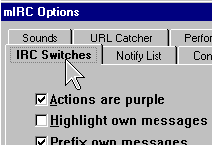
First click on the "mIRC Options" icon  in the main mIRC window, then click on the "IRC Switches" file tab (see below).
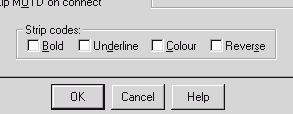
In the lower center of that window, check to make sure that NONE of the boxes in the "Strip Codes" section are checked. If any are checked, click in the boxes to uncheck them. When you are finished, click the "OK" button. (See Below.)
That completes the mIRC setup. Now you're ready to use the special commands for color, boldface and underlined text!
Using the Color and Other Text Features in mIRC and PIRCH
Once you have set mIRC up properly, using the color features is quite simple. There are 16 different colors, each designated by a number from 0 to 15. The number 0 represents white, the number 1 represents black and so on. The color feature is "turned on" by holding down the "control" key and pressing "k" <ctrl> then letting up on the control key and immediately (with no space) pressing a number from 1-15.
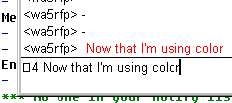
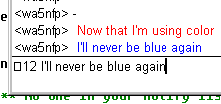
This is called a <ctrl-k> combination. In your channel window you will not see color yet, but will see a small box at the place where you pressed <ctrl> + <number>. When you press the <enter> key the text you typed, preceded by the <ctrl-k> combination will show up in the color represented by the number. For example: preceding a line of text with <ctrl-k><4> will result in a line of red text; using <ctrl-k><12> will result in a line of blue text. (see below)
You can use colors in any combination on a line, as long as you start and end each color with <ctrl-k>. To use boldface substitute <ctrl-b> instead of <ctrl-k> and do not use a number. Underline is similar, substituting <ctrl-u> and using no number. PIRCH offers one additional command for italicized text using the "control" + "i" key combination - <ctrl-i>.
All of the above instructions are for manually formatting text for color, boldface or underlining; however, this process can be a bit slow and limited. For that reason, there are a myriad of "scripts" developed to "automate" the process of making various colors and appearances. Some of those scripts are available on 50+retired by typing ^scripts in the channel window when any OP is present. You can also click on the "scripts" link below to download scripts from this web site.
It's as easy as that, so give it a try, and remember: Practice makes perfect!!
See you on 50+retired...
Smitty (AC5C_Okla)
Arch (wa5nfp/_Bubba)
| Home Page | General Info | The OPs | How To Info | F.A.Q. | Scripts | Channel Users |
 This page is maintained by Smitty,
(ac5c@oklahoma.net) and was designed
by _Bubba
(ahbaker@theologie.uni-erlangen.de).
Both can be found and/or contacted on DALNet's #50+retired channel, or
through DALNet MemoServ. Absolutely nothing here is
copyrighted by us, and it probably wouldn't matter even if it were.
Take whatever you want, and if it will make you feel any better to take
credit also for our original work we invite you to go ahead... we can always
make more. If you have praise or contributions for the page, please email us
right away. For all other matters please
click here.
This page is maintained by Smitty,
(ac5c@oklahoma.net) and was designed
by _Bubba
(ahbaker@theologie.uni-erlangen.de).
Both can be found and/or contacted on DALNet's #50+retired channel, or
through DALNet MemoServ. Absolutely nothing here is
copyrighted by us, and it probably wouldn't matter even if it were.
Take whatever you want, and if it will make you feel any better to take
credit also for our original work we invite you to go ahead... we can always
make more. If you have praise or contributions for the page, please email us
right away. For all other matters please
click here.